

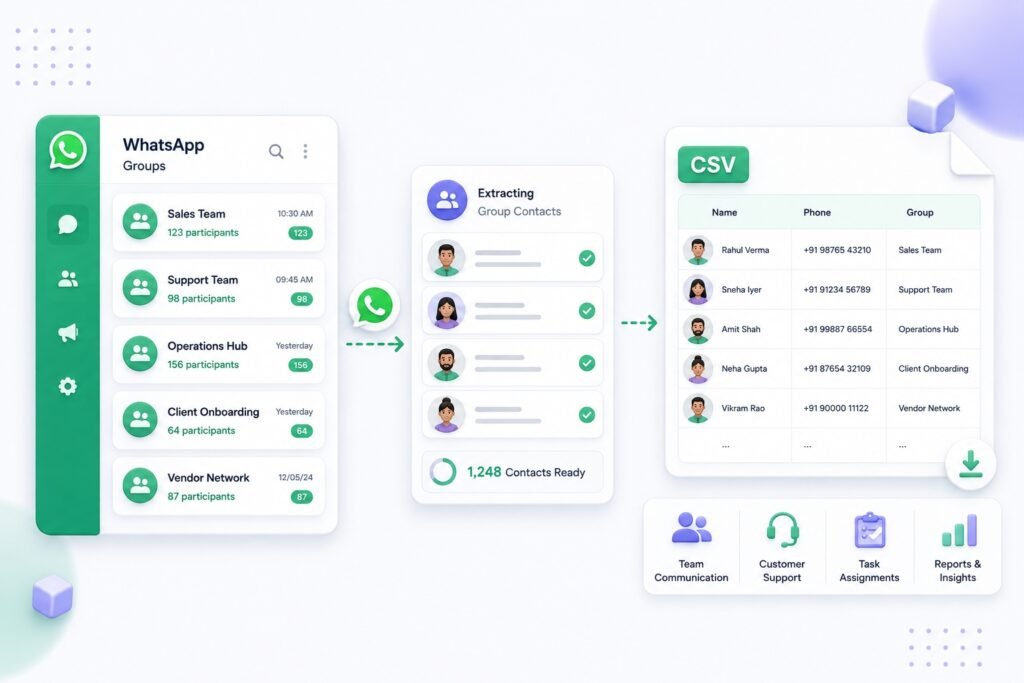
This guide explains how to WhatsApp group contact export for internal operations. It covers accessible WhatsApp groups and contact CSV review in a clear, reviewable workflow.
Table of Contents
Not every WhatsApp group needs to become a spreadsheet. But when a team needs to organize contacts from groups it can access, a clean export can reduce manual work and make an internal process easier to manage.
The key is purpose. A useful contact export supports a defined operational task. It is not a reason to collect everything or send irrelevant messages to people.
Why copying contacts by hand does not scale
Manual group review is slow. Someone opens a group, scrolls through participants, copies details into a sheet, and repeats the task for every related group.
That creates predictable problems:
- The same contact appears repeatedly across groups.
- Group context is lost after the copy-paste step.
- Team members use different formats for names and numbers.
- Privacy-protected contacts create confusing rows.
- Nobody can explain why a contact was added to the file.
An operations list should make the next step clearer, not create another cleanup project.
What useful output looks like
A practical export should show one contact record and preserve the groups connected to that person.
| Field | Operational value |
|---|---|
| Name | Helps identify the record |
| Phone Number | Keeps the available contact value |
| Group columns | Shows the groups where the contact appears |
| Export date | Helps with record maintenance |
| Internal notes | Adds a purpose or owner when needed |
For privacy-protected contacts, the correct result may be Privacy-protected (@lid) rather than a phone number. That is a meaningful status, not an error to bypass.
Good internal use cases
Contact export can be useful when there is a clear, permitted operational reason. For example:
- Building an internal directory for an event team
- Reconciling project-group membership
- Organizing supplier or volunteer contacts from groups your team manages
- Preparing a reviewed spreadsheet for operations staff
- Checking overlap between several groups connected to the same program
In each case, the team should be able to explain why the group was selected, who will access the file, and what will happen to the data next.
A practical workflow
1. Define the operational need
Start with a simple statement: “We need a current contact file for the event-support groups,” or “We need to see which project contacts are in more than one group.”
That statement determines which groups belong in the export and helps prevent a vague, oversized list.
2. Select only relevant groups you can access
Choose the smallest group set that solves the task. Do not treat access as permission to export every group available.
Keep the workflow limited to WhatsApp Web groups you can access, and follow your organization’s privacy expectations and applicable rules.
3. Preserve group associations
If a contact appears in multiple selected groups, keep those group names in separate columns. This shows overlap without creating duplicate rows.
For an operations team, that context is often more useful than the phone number alone. It can show whether someone belongs to the event group, the logistics group, or both.
4. Deduplicate and review
Merge duplicate contacts across selected groups, then review the output for blank names, unclear entries, and groups selected by mistake.
Do not remove privacy-protected rows simply because they lack a visible number. Retain the correct Privacy-protected (@lid) marker and let the team decide whether the group context is enough for the internal task.
5. Export a spreadsheet-ready file
Open the CSV in Excel or Google Sheets and verify that names, phone values, and group columns display as expected. Add an internal owner or review status only if it supports the next step.
A CSV is a handoff format. Treat it as controlled operational data, not a permission slip for unrelated outreach.
Common mistakes to avoid
- Exporting groups without a defined internal purpose
- Losing group names during deduplication
- Treating private or unavailable numbers as something to recover
- Sharing the file more broadly than the workflow requires
- Framing an operational export as a bulk-outreach list
- Implying access to groups a user cannot access
A simpler export workflow
WA Harvest is a Chrome extension for WhatsApp Web that helps users export contact data from groups they can access into an Excel-friendly CSV.
Users can search groups, select one or many groups, process them in one run, and deduplicate contacts across those groups. The output includes Name, Phone Number, Group 1, Group 2, Group 3, and additional group columns where a contact belongs to more groups. Privacy-protected entries are marked as Privacy-protected (@lid).
The result is a more organized starting point for an internal team: less manual copying, clearer group context, and a structured CSV to review before it moves anywhere else.
Final takeaway
A WhatsApp group contact export is useful when it supports a real internal operation and keeps context intact.
Start with the groups you can access, select only what the task needs, preserve group associations, deduplicate carefully, and review the file before sharing it. If you need a cleaner way to create that CSV in WhatsApp Web, WA Harvest is built for the job.
Use WA Harvest only with WhatsApp Web groups you can access and handle exported contacts responsibly under applicable terms and privacy requirements. Read the relevant official guidance when it applies.
For the product-specific workflow described here, explore WA Harvest.