

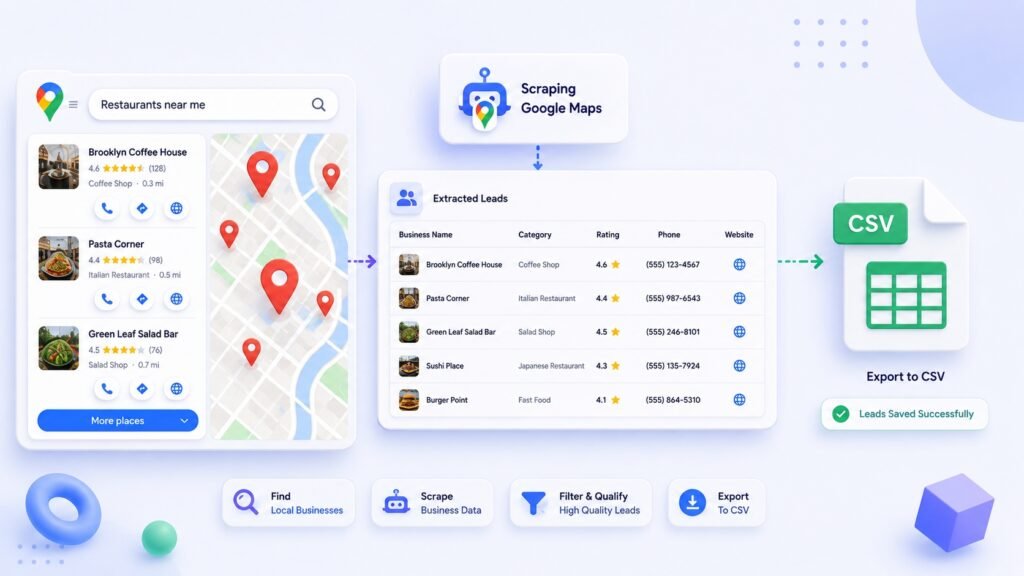
A clean Google Maps leads CSV becomes more useful when the team can review source context, remove duplicates, and decide which records belong in the next step. A Google Maps lead list should support that review rather than replace it.
Google Maps can be a useful starting point for local prospecting—but a list of businesses is not automatically a usable lead list.
For marketing agencies and lead-generation specialists, the real work is turning a local search into clean, organized data your team can review, segment, and use in its workflow.
This guide explains how to scrape Google Maps to CSV responsibly, clean the output, and prepare it for follow-up.
Important: Google Maps data and services are governed by Google’s applicable terms. Before collecting, storing, or using data, review the relevant terms and make sure your process complies with applicable laws, privacy rules, and your outreach policies. This guide is about building an organized prospecting workflow—not bypassing platform controls or sending unsolicited spam.
In this guide
The short answer
To scrape Google Maps leads into a clean CSV:
- Define the type of business and location you want to target.
- Search Google Maps using focused, repeatable queries.
- Collect the fields your team actually needs.
- Remove duplicates and incomplete records.
- Tag and segment the list by location, category, or fit.
- Export the final data to CSV.
- Review the list before importing it into a CRM, enrichment tool, or automation workflow.
The quality of your prospecting depends less on how many listings you collect and more on how well you define, clean, and organize the list.
Why a clean CSV matters more than a large list
A raw export often contains:
- Duplicate businesses
- Inconsistent category names
- Missing websites or contact details
- Locations outside your intended service area
- Franchises, chains, or businesses that do not match your ideal customer profile
- Fields your team does not need
If you skip cleanup, your outreach team wastes time reviewing bad-fit records, handling duplicate accounts, and manually fixing spreadsheets.
A clean CSV gives your team a usable starting point for:
- Local lead research
- Sales territory planning
- CRM imports
- Market mapping
- Prospect segmentation
- Personalized outreach research
- n8n, webhook, or internal automation workflows
Step 1: Define your ideal local prospect before searching
Do not start with a broad search such as “businesses in New York.”
Start with a clear prospect definition.
For example, a web-design agency might target:
| Targeting element | Example |
|---|---|
| Industry | Independent dental practices |
| Location | Austin, Texas |
| Business size signal | 2–10 locations |
| Website signal | Outdated website, no booking flow, poor mobile experience |
| Exclusions | National chains, hospitals, franchises |
| Offer | Website redesign, local SEO, lead-generation landing pages |
This makes your search more focused and makes the resulting CSV easier to use.
Build a search-query matrix
Instead of relying on one broad query, create a simple matrix.
| Service or category | Location | Example search |
|---|---|---|
| Roofers | Dallas | roofers in Dallas |
| Med spas | Austin | med spas in Austin |
| Accountants | Miami | accountants in Miami |
| Dentists | Phoenix | dentists in Phoenix |
You can expand this by neighborhood, suburb, or service area when a city-level search is too broad.
This approach helps agencies create more targeted lists without mixing unrelated business types into one export.
Step 2: Search for businesses by category and location
Open Google Maps and use one targeted query at a time.
A good query normally combines:
- A business category
- A geographic area
Examples:
plumbers in Tampamarketing agencies in Manchesterchiropractors in Scottsdalewedding venues in Chicago
Keep a record of each query you run. Add it to your CSV as a source_query field later.
That one field is useful because it tells your team where a record came from and makes future segmentation easier.
Avoid overly broad queries
Broad searches create messy lists. For example:
restaurants in Californiabusinesses near mebest companies
These searches make it harder to qualify businesses and more likely that you will collect duplicates or irrelevant records.
A narrow, repeatable query is usually more useful than a large, mixed list.
Step 3: Decide which fields belong in your CSV
Before you collect anything, decide what your team needs.
For most local prospecting workflows, start with these fields:
| CSV field | Why it matters |
|---|---|
| Business name | Identifies the account |
| Primary category | Helps segment by industry |
| Address | Supports territory and location checks |
| City | Makes filtering easier |
| State/region | Helps with multi-market campaigns |
| Postal code | Useful for territory or service-area logic |
| Phone number | A contact reference where publicly available |
| Website | Useful for qualification and later research |
| Google Maps URL | Lets a teammate verify the original listing |
| Rating | Optional fit or reputation signal |
| Review count | Optional activity or market-maturity signal |
| Source query | Shows how the business entered the list |
| Date collected | Helps your team manage freshness |
| Internal notes | Stores qualification findings |
Do not collect fields simply because a tool can return them. Collect fields because they help your team make a better decision.
A simple CSV structure
business_name,category,address,city,region,phone,website,google_maps_url,rating,review_count,source_query,date_collected,notes
For an agency, this is usually enough to build a practical first-pass list.
Step 4: Collect the data into a working list
You can collect business listing data manually, use an approved data source, build an API-based workflow where appropriate, or use a purpose-built prospecting utility.
Whichever method you choose, prioritize three things:
- Consistency — the same fields should appear across records.
- Traceability — keep the original search query and listing URL.
- Reviewability — a teammate should be able to understand and check a record without guessing.
A common mistake is treating all listings as qualified leads. They are not.
At this stage, you have a research list. Qualification comes next.
Step 5: Clean the list before export
This is where a raw collection becomes a usable CSV.
Remove duplicates
Duplicates often appear when:
- You search nearby cities or overlapping areas
- A business appears in multiple categories
- A business has multiple listings
- A chain has several locations
Use the business name, phone number, website domain, and address together to identify likely duplicates.
Do not automatically delete every similar name. Two locations may be separate accounts worth keeping.
Standardize location data
Inconsistent location formatting creates problems later.
For example, these may refer to the same city:
Los AngelesLALos Angeles, CALos Angeles California
Choose one standard format for city, region, and country fields before your team imports the file anywhere else.
Normalize website URLs
Website data often arrives in several formats:
example.comwww.example.comhttps://example.comhttps://www.example.com/
Normalize URLs where possible so your CRM, enrichment workflow, or deduplication process can identify the same domain reliably.
Flag incomplete records instead of deleting them immediately
A listing without a website or phone number may still be relevant.
Use a field such as data_status:
| Data status | Meaning |
|---|---|
| Ready for review | Core fields are present |
| Missing website | Needs manual review |
| Possible duplicate | Needs confirmation |
| Out of territory | Exclude from this campaign |
| Poor fit | Keep for reference, do not contact |
This gives your team a cleaner process than deleting everything incomplete.
Keep the workflow practical: a smaller, well-organized list is more useful than a large CSV full of duplicates and incomplete records.
Once your process is repeatable, a tool such as Map Lead Finder can reduce the manual collection work while keeping review and qualification with your team.
Step 6: Segment the CSV by fit, not just geography
Agencies get better results when they group businesses by a clear reason for outreach.
Useful segmentation fields include:
- Industry
- City or service area
- Website present or missing
- Number of locations
- Rating or review count
- Service offering
- Internal fit score
- Campaign or list name
For example, a local SEO agency could create separate segments for:
- Dentists in Austin with under 20 reviews
- Roofers in Dallas with no website listed
- Med spas in Miami with outdated booking pages
- Accountants in Phoenix with incomplete local profiles
The goal is not to build the biggest list. It is to build a list your team can act on with relevance.
Step 7: Review before the CSV enters outreach or automation
Before you export or import the file, review a sample manually.
Check:
- Are the businesses actually in the intended area?
- Are there obvious duplicates?
- Do the categories match the target market?
- Are websites and phone numbers formatted consistently?
- Are chain locations mixed into an independent-business campaign?
- Are there fields your team should remove before importing?
- Does the intended use comply with your policies and applicable requirements?
A 10-minute quality check can prevent hours of cleanup later.
Step 8: Export the final list to CSV
Once the list is cleaned and tagged, export it as a CSV using UTF-8 encoding where possible.
CSV is a practical format because it can be opened in:
- Google Sheets
- Microsoft Excel
- Airtable
- Most CRMs
- Enrichment tools
- Internal databases
- Automation tools and webhook workflows
Before importing, map your columns carefully. A mismatched field can turn a clean list into a messy CRM import.
A faster workflow: use Map Lead Finder
Manual collection can work for a very small list. It becomes slow when an agency needs repeatable local prospecting across multiple categories, cities, or client campaigns.
Map Lead Finder helps turn Google Maps results into usable lead lists.
With Map Lead Finder, teams can focus on the workflow that matters:
- Find leads from Google Maps
- Collect available business details and phone numbers, with up to three public website emails per lead available through Pro email enrichment
- Organize output into a usable list
- Export clean lead data to CSV
- Send structured lead data to a configured webhook for an n8n, Make, Zapier, or custom-backend workflow
- Reduce repetitive copy-paste work
The important part is not simply exporting data. It is getting a structured starting point your team can review, segment, and move into its existing process.
Map Lead Finder is not affiliated with Google. Available data can vary by listing, website, location, and other factors, so teams should review records before using them.
What to do after you export your CSV
A clean CSV should move into a clear next step.
For most agency teams, that means:
- Assign an owner — who reviews and qualifies the list?
- Choose a campaign — which service or offer is relevant to this segment?
- Add context — what makes this business a plausible fit?
- Use responsible outreach practices — keep messages relevant, truthful, and aligned with applicable rules.
- Track outcomes — record qualification decisions, replies, and reasons a segment did or did not perform.
The CSV is not the finish line. It is the foundation for a more organized prospecting workflow.
Frequently asked questions
Can I export Google Maps search results to CSV?
A CSV export is a common way to organize local business research for review, segmentation, CRM imports, or other workflows. The right method depends on your scale, technical setup, and applicable platform terms.
What information should a Google Maps lead CSV include?
Start with business name, category, address, city, phone number where available, website, source query, listing URL, date collected, and internal qualification notes.
How do I remove duplicate Google Maps leads?
Compare several fields together: business name, phone number, website domain, address, and city. Similar business names alone are not enough to confirm a duplicate.
Is a larger Google Maps CSV always better?
No. A smaller list that matches a specific industry, location, and offer is usually more useful than a large, unqualified export.
Can I send Google Maps lead data into n8n or a webhook workflow?
Yes, if your chosen tool supports it. The practical goal is to move reviewed, structured output into the workflow your team already uses—not to create more manual spreadsheet work.
Final takeaway
The best way to scrape Google Maps to CSV is to treat the task as a lead-list workflow, not a data-grabbing exercise.
Define your target, use focused searches, collect only useful fields, clean and segment the output, and review it before it reaches your CRM or campaign process. When your team needs to repeat that workflow at scale, Map Lead Finder can help turn Google Maps results into organized, export-ready lead data without the manual copy-paste.
Your next step
Use this workflow to build one focused lead list, review it, and document what qualifies a business for your offer. Repeat only what produces useful conversations—not just bigger exports.
Use Google Maps responsibly and review the applicable <a href=”https://cloud.google.com/maps-platform/terms”>Google Maps Platform Terms</a> before collecting, storing, or using data.
For a structured local-business prospecting workflow, explore <a href=”https://insanealgo.com/product/map-lead-finder/”>Map Lead Finder</a>. Review available data before use and follow applicable privacy and outreach requirements.
When a Scrape Google Maps leads to CSV is useful
A Scrape Google Maps leads to CSV is useful when a team needs a clear, reviewable starting point for a local-business decision instead of a loose collection of copied listings. The value of a Scrape Google Maps leads to CSV comes from defined searches, usable fields, and a human review before any next step. Keep the Scrape Google Maps leads to CSV focused on relevance and responsible use, not raw volume.