

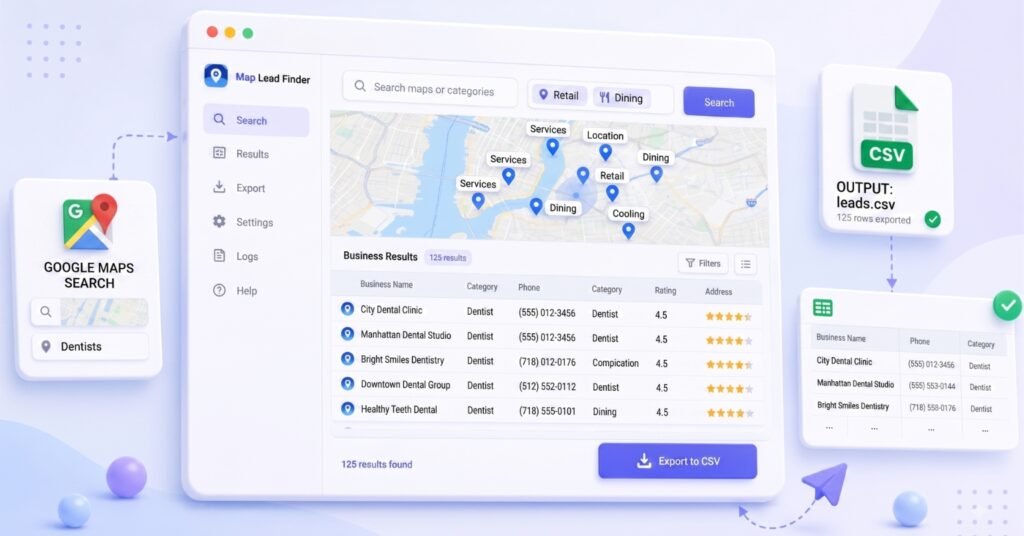
Finding local businesses on Google Maps is easy. Turning those results into a clean list you can review and use is the slow part. Map Lead Finder helps you search by keyword and location, collect business listings in one lead table, and export the results when the list looks right.
This guide shows how to use Map Lead Finder: run one focused search, review the records, and export the CSV.
Quick overview: Search → Extract → Review → Export
What You Need Before You Start
Before your first run, make sure you have:
- Chrome with Map Lead Finder available
- Google Maps open
- one clear business keyword
- one location to search
- a plan for reviewing the results before using them
Free vs Pro: The free version allows up to 20 lead extractions. Pro adds unlimited extraction, website email enrichment, and webhook/automation support.
How Map Lead Finder Works
Map Lead Finder works directly on Google Maps. You enter a keyword and location, then the extension collects matching business listings into a structured lead table. That makes local Google Maps lead generation easier to review before a CSV handoff.
The table is built for review. You can search, filter, and sort the results before export. CID-based matching helps reduce duplicate businesses across searches.
How to Export Your First Google Maps Lead List
Step 1: Choose a Keyword and Location
Choose a focused search that describes the businesses you want to find.
Start narrow. A specific keyword and location make it easier to see whether the results match your task.
Step 2: Enter Your Search Details
Open Map Lead Finder and enter the keyword and location. If useful for your workflow, enable the option to include latitude and longitude where they are available.
Step 3: Start the Extraction
Start the extraction and allow the search to complete. Map Lead Finder gathers listings into the lead table and can move through the Google Maps results for the query.
Large or repeated searches may encounter Google Maps interruptions such as CAPTCHAs or temporary limits. If this happens, slow down the workflow and follow the prompts shown in Google Maps.
Step 4: Review Your Lead Table
Review the lead table before exporting. Use search, filters, and sorting to check that the businesses fit the keyword and location you selected.
Look for businesses outside the intended area, categories that do not fit, missing details that matter to you, or duplicate records across searches. CID-based deduplication helps reduce repeats, but a quick review is still useful.
Step 5: Export Your Leads to CSV
When the table looks right, use the CSV export. The download uses structured columns and a date-based filename. It can include Google Maps links and, when selected and available, latitude and longitude.
Open the CSV and check a few rows. This is how to export Google Maps search results to CSV without copying business details by hand.
How to Search Multiple Keywords and Locations
Once the first search works, add more keyword and location combinations to build a larger task list. Map Lead Finder can process multiple combinations and move to the next query as each search finishes.
Use combinations that belong in the same review task. For example, keep a list focused on one service area or business type rather than mixing unrelated searches into one export.
What Information Map Lead Finder Collects
The exact fields available can vary by Google Maps listing. Map Lead Finder can collect structured data such as:
- keyword and location
- company name and category
- website and phone number
- address, city, state, and pincode
- review and rating information
- Google Maps link and CID
- latitude and longitude when available
- up to three public email fields when Pro email enrichment is used
A lead table is a starting point for review, not a promise that every business listing contains every field.
Tips for Better Google Maps Lead Searches
- Start with one specific keyword and one location.
- Review a small result set before adding more searches.
- Use filters and sorting to remove obvious mismatches.
- Keep multiple searches focused on the same task.
- Export only after checking that the lead table looks useful.
- In Pro, use email enrichment to look for available public emails on business websites, then review the results before use.
Common Problems and Mistakes
Starting With Vague Searches
Broad queries can create mixed results that take longer to clean. Use a clear business category and location first, then broaden only when the first list is useful.
Exporting Before Reviewing
CSV export is the handoff, not the quality check. Review the lead table first, then spot-check the downloaded file.
Missing Business Information
Some Google Maps listings do not include a website, phone number, address detail, or public email. Map Lead Finder structures the information that is available; it does not guarantee that every listing is complete.
Google Maps Interruptions or Limits
If Google Maps shows a CAPTCHA or temporary limit, slow down and follow the prompts shown in Google Maps before continuing. Avoid treating repeated searches as a set-and-forget process.
Frequently Asked Questions
Can Map Lead Finder export Google Maps results to CSV?
Yes. After reviewing the lead table, you can export the extracted Google Maps business data to a structured CSV file.
How many leads can I extract for free?
The free version allows up to 20 lead extractions. Pro removes this extraction limit.
Can I search multiple keywords and locations?
Yes. Map Lead Finder supports multiple keyword and location combinations in one task list.
Does Map Lead Finder remove duplicate businesses?
Map Lead Finder uses CID-based matching to help deduplicate businesses across searches. Review the result set before export to make sure it fits your task.
Does Map Lead Finder find business email addresses?
In Pro, Map Lead Finder can crawl business websites for available public emails. It can return up to three email fields per lead when emails are found.
Can I filter and sort my extracted leads?
Yes. The lead table includes search, filter, and sort controls so you can review the extracted records before export.
Conclusion
Start with one focused Google Maps search, review the results, and export the CSV once the lead list looks right. When you are comfortable with the workflow, expand to multiple keyword and location combinations or use Pro features such as email enrichment and configured webhooks.
Ready to find your next list of local business leads? See Map Lead Finder.