

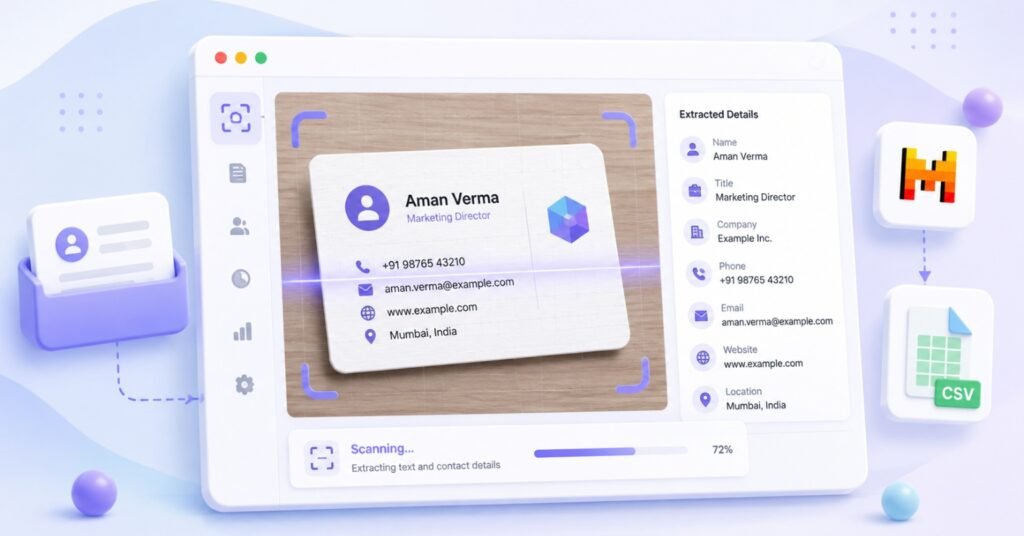
Business cards are useful only when their details make it into a follow-up workflow. Typing every name, company, email address, and phone number by hand is slow, especially after an event or a busy run of meetings.
CardScan AI helps you turn business-card images into structured contact records. You still review the result before use, but the repetitive first-pass entry work becomes easier to manage.
Quick overview: Upload → Extract → Review → Customize → Export
What You Need
Before you begin, make sure you have:
- CardScan AI available in Chrome
- your own Mistral API key
- an internet connection, because extraction uses Mistral cloud models
- a supported business-card image in PNG, JPG, JPEG, or WEBP format
Choose a clear image for your first scan. Readable text, good contrast, and a complete view of the card give you a better starting point for review.
How to Use CardScan AI
Step 1: Add Your Mistral API Key
Open CardScan AI and go to the settings area. Add your Mistral API key in the available field. The key is stored locally in Chrome storage and is sent directly to Mistral over HTTPS for the extraction workflow.
Keep the key private and use the Mistral account and plan that fit your own requirements. CardScan AI requires an API key before it can process a card image.
Step 2: Choose Your Model
CardScan AI supports Mistral Small, Mistral Medium, and Mistral Large. The right choice depends on the trade-off you want between speed, cost, and extraction quality.
Start with the option that fits your normal workflow. If you are scanning several cards, do not assume every request will finish instantly. Mistral free-tier usage can have rate limits, so a measured pace is more reliable for larger batches.
Step 3: Add a Business Card Image
You can add a card image in three ways:
- drag and drop a file into CardScan AI
- paste an image from your clipboard with Ctrl+V or Cmd+V
- use the file browser to upload an image
CardScan AI uses Mistral vision models to extract the details it can read from the image. For the best first result, avoid blurry, heavily cropped, low-contrast, or unusually stylized cards where possible.
Step 4: Review the Extracted Contact Information
After processing, CardScan AI presents the result in structured sections such as Personal, Contact, Address, and Meta. Common fields can include:
- Name
- Designation
- Company
- Email and Email 2
- Phone and Phone 2
- Address, City, PinCode, State, and Country
- Extracted Date
- Source
Review the card image alongside the extracted record. Check names, companies, email addresses, and phone numbers carefully. Correct or remove information that does not match the source card.
This is an important part of how to use CardScan AI. AI extraction reduces manual entry, but it does not guarantee a perfect record from every image.
Step 5: Add Custom Fields
Use custom fields when the standard contact fields are not enough for your workflow.
CardScan AI supports:
- persistent custom fields in Settings for future scans
- one-off ad-hoc fields for a single card
For example, you may add a Website, LinkedIn, Project Name, event label, or Follow-up Priority. A default Source value, such as an event name, can also make the exported records easier to organize later.
Step 6: Export Your Contacts to CSV
When you have reviewed the records in the session, export them to CSV. CardScan AI exports all captured cards in the active session as structured rows.
The CSV uses UTF-8 BOM formatting to support accented names and international numbers in common spreadsheet workflows. It can include the standard extracted fields, configured custom fields, and any one-off fields you added before export.
Step 7: Check Your Exported CSV
Open the downloaded CSV and inspect a small sample before using it elsewhere. Confirm that:
- the reviewed names and contact details appear as expected
- the Source value is useful and accurate
- your custom fields are included where required
- the file contains the records you intended to export
A CSV is a handoff format. It can be opened in a spreadsheet or prepared for your own CRM or follow-up process, but you should still review the data before relying on it.
Tips for Better Business Card Scanning
- Use a clear, well-lit image with the full card visible.
- Review email addresses and phone numbers character by character when they matter.
- Set a Source label for cards from the same event, conference, or campaign.
- Use persistent custom fields for information you need on most future scans.
- Scan multiple cards in one session when you want one combined export.
- Export a completed session before closing the CardScan AI popup.
Important Limitations
Image quality
Image quality, card layout, text size, and contrast can affect what is extracted. A clean image improves the starting result, but does not remove the need for review.
AI accuracy
CardScan AI uses Mistral vision models to extract data. It helps organize information from the card, but users should correct errors before using or exporting the record.
Mistral rate limits
Extraction depends on your Mistral API access. Free-tier usage can be rate-limited, so larger batches may need a slower pace.
Temporary session data
Session data lives in temporary browser memory. Closing the CardScan AI popup before exporting can lose unsaved session data. Export the session once it is reviewed.
Frequently Asked Questions
Does CardScan AI require a Mistral API key?
Yes. CardScan AI uses your own Mistral API key to process business-card images with Mistral vision models.
What image formats are supported?
CardScan AI supports PNG, JPG, JPEG, and WEBP business-card images.
Can I scan multiple cards?
Yes. You can add multiple cards in one session, review the collected records, and export the session as one CSV file.
Can I add custom fields?
Yes. You can create persistent custom fields in Settings or add one-off fields to an individual card before export.
Can I export contacts to CSV?
Yes. Once the records are reviewed, CardScan AI exports the active session as a structured CSV file.
Conclusion
The practical CardScan AI workflow is simple: add a clear card image, review the extracted record, add useful context, and export the session once it is ready. This lets you scan business cards and export business card contacts without relying on manual first-pass entry.
If you want to turn business-card images into structured contact data with a review step before export, see CardScan AI.