Maps Lead Finder
Find local business leads from Google Maps

Drag, paste, or upload business card images and let AI extract names, emails, phone numbers, addresses, and custom fields into clean, export-ready CSV files.
 How it works
Drag & drop, paste from clipboard, or upload an image.
CardScan AI reads the business card using Mistral Vision models.
Verify extracted fields before adding them to your session.
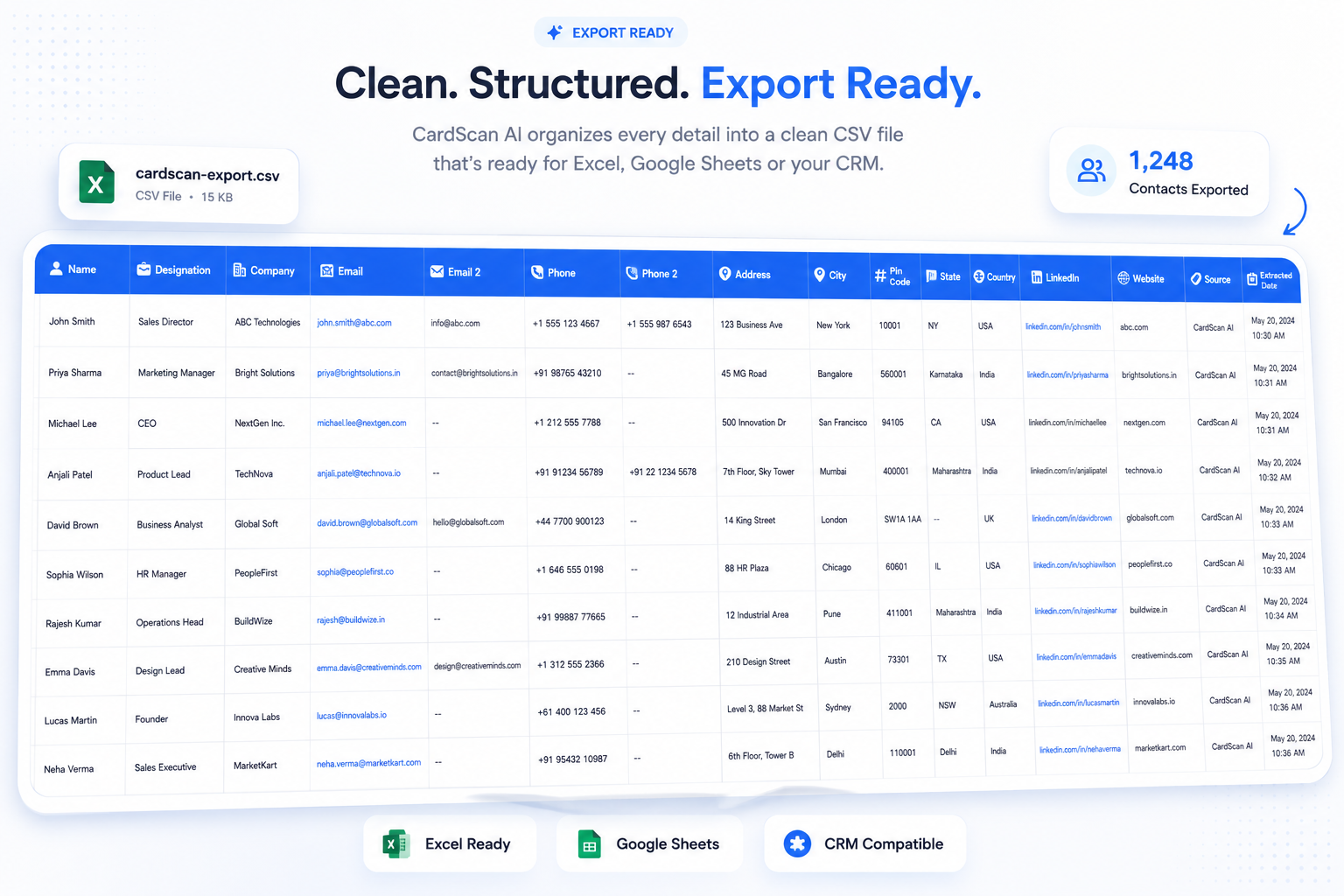
Export all scanned contacts into one clean CSV file.
What gets extracted| NAME | DESIGNATION | COMPANY | EMAIL 2 | PHONE | PHONE2 | ADDRESS | CITY | PIN CODE | STATE | COUNTRY | |
|---|---|---|---|---|---|---|---|---|---|---|---|
| Sarah Chen | Director | Northwind Co. | sarah@northwind.co | — | +1 415-555-0142 | — | 500 Market St | San Francisco | 94105 | CA | USA |
| Ravi Patel | Founder | Acme Labs | ravi@acmelabs.io | hello@acmelabs.io | +91 98200 11223 | — | 12 MG Road | Mumbai | 400001 | MH | India |
| Maya Larsson | Sales Lead | Fjord Systems | maya@fjord.se | — | +46 8 555 0199 | — | Storgatan 4 | Stockholm | 11151 | — | Sweden |
Sample exportBuilt for Faster Contact Capture
 Privacy
Requests go directly from your browser.
Kept in Chrome storage, never uploaded.
Images processed by Mistral APIs only.
All communication encrypted end-to-end.
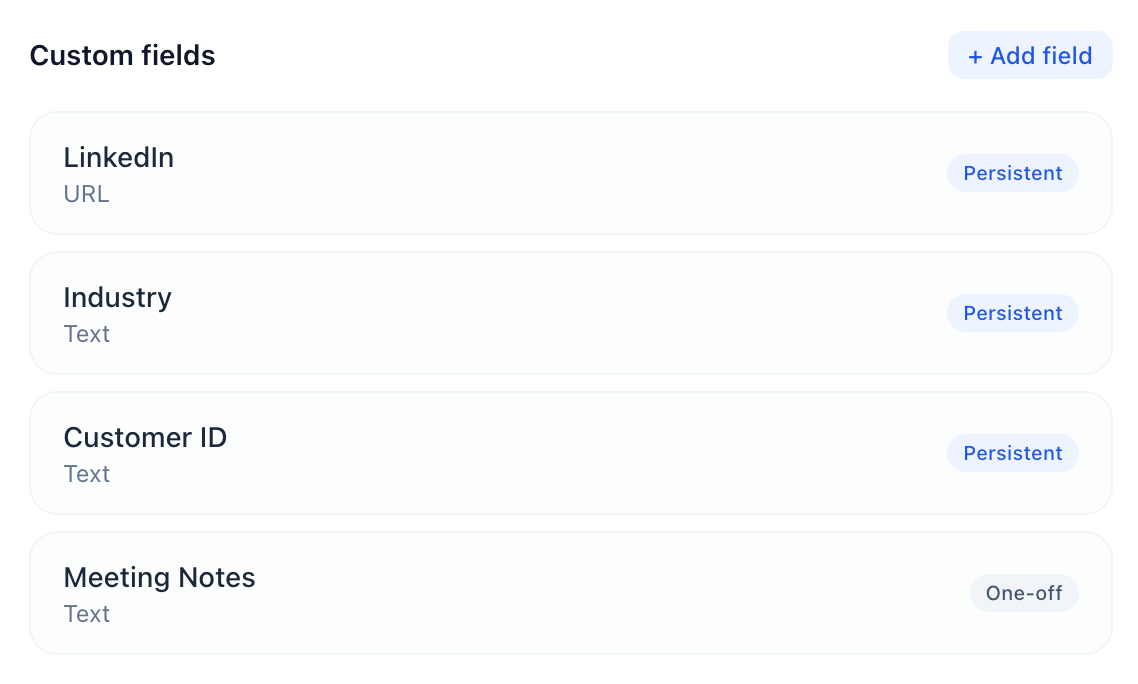
Sample exportCreate your own custom fields once and reuse them across every card. CardScan AI will look for them automatically. Need something specific for a single card? Add an ad-hoc field just for that one contact.
 Session management
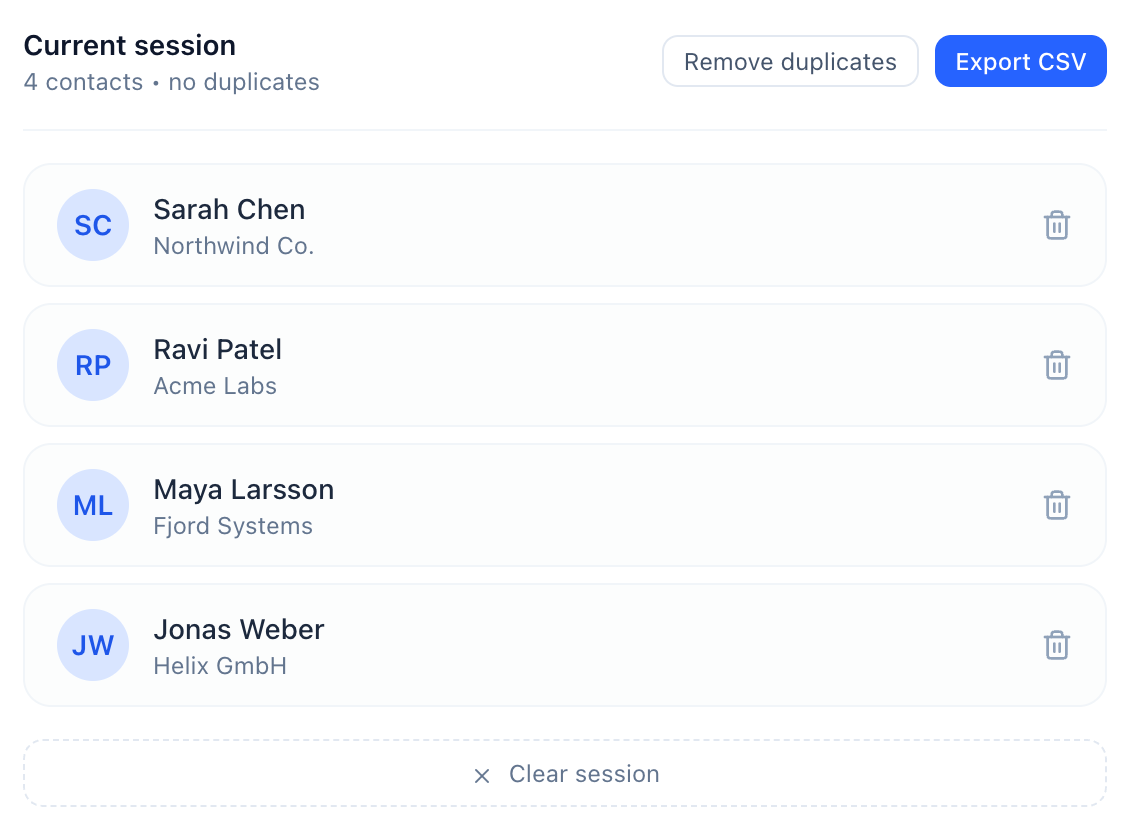
Every scan flows into a running session. Review each card, remove duplicates, delete mistakes, and export the entire batch as a single clean CSV — all before anything leaves your browser.
Running session with live card counter
Full review panel with inline edit
Delete individual cards or clear all
One-click duplicate removal
Export everything together
FAQ If something isn't covered here, we're happy to answer directly.
Yes, CardScan AI requires a Mistral API key to extract contact information from business cards. Getting started is free—Mistral provides free API credits for new accounts. We've included a simple step-by-step guide inside the extension to help you create your API key and start scanning in just a few minutes.
Yes. Scan as many business cards as you need in a single session, review the extracted data, remove duplicates, and export everything together as one CSV file.
Absolutely. You can review and modify every field—including names, emails, phone numbers, addresses, and custom fields—before exporting your contacts.
Yes. Create permanent custom fields like LinkedIn, Industry, Customer ID, Website, Notes, or any field your workflow requires. You can also add one-off fields for individual cards.
Yes. Your Mistral API key is stored locally in your browser, and images are sent securely over HTTPS directly to Mistral for processing. CardScan AI does not store your business card images.
Export all scanned contacts as a clean CSV file that's ready for Microsoft Excel, Google Sheets, Airtable, Notion, HubSpot, Salesforce, and most CRM platforms.
CardScan AI supports PNG, JPG, JPEG, and WEBP images. You can upload files, drag and drop them, or simply paste a screenshot using Ctrl+V or Cmd+V.