

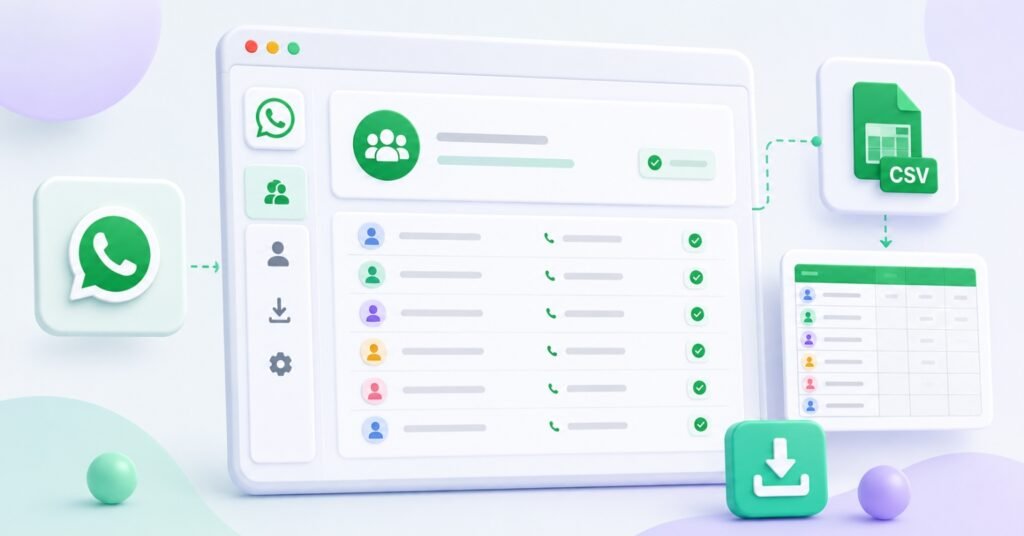
Copying contacts from WhatsApp groups one by one is slow and difficult to review later. WA Harvest lets you select the WhatsApp Web groups you are authorized to access, export their contact data to CSV, and keep the related group names with each record.
Use WA Harvest only with WhatsApp Web groups you are authorized to access, and handle exported contact information in accordance with applicable privacy and outreach requirements.
Export WhatsApp Group Contacts to CSV
WA Harvest is a Chrome extension that works inside WhatsApp Web. It loads the groups available to you, lets you select one or more groups, collects participant contact data, removes duplicates across the selected groups, and downloads a structured CSV.
The basic workflow is simple: open WhatsApp Web, choose the right groups, export the contacts, and review the downloaded file before using it in your own process. To learn how to export WhatsApp group contacts to CSV, start with one focused group and check the result before expanding the workflow.
What You Need Before You Start
Before your first export, make sure you have:
- Chrome with WA Harvest available
- WhatsApp Web fully loaded
- access to the group or groups you intend to export
- a clear reason for the export and a plan to review the CSV
Free vs Full: The free version allows the first 20 contacts in an export. The Full version removes this limit.
What WA Harvest Exports
WA Harvest creates a timestamped, Excel-friendly CSV. The standard output includes:
NamePhone NumberGroup 1Group 2Group 3- additional group columns when a contact belongs to more selected groups
When the same person appears in more than one selected group, WA Harvest deduplicates the contact where possible and keeps the relevant group names in the group columns.
If a phone number is hidden, the Phone Number value is recorded as Privacy-protected (@lid). This is not a usable phone number; it simply preserves the privacy-protected contact record without breaking the export.
How to Export Your First WhatsApp Group
Step 1: Open WhatsApp Web
Open WhatsApp Web and wait until it has loaded. WA Harvest needs the WhatsApp Web page to be available before it can load your accessible group list.
Step 2: Open WA Harvest
Open the WA Harvest extension. It displays the WhatsApp groups available in your current WhatsApp Web context.
Step 3: Select a Group
For your first export, choose one small, familiar group. Use the search field if you need to find a group by name, then check the selected count before continuing.
Starting with one group makes it easier to confirm that the output contains the records and group context you expect.
Step 4: Export Contacts to CSV
Select Export to CSV. WA Harvest processes the selected group, collects participant data, removes duplicates where relevant, generates the CSV, and downloads the file.
Large groups can take longer because participant data has to load. Let the export finish before closing the extension or starting another task.
Step 5: Review the CSV
Open the downloaded file in your spreadsheet tool. Check a small sample before using it elsewhere:
- confirm that the intended group appears in the group columns
- check that the rows look correctly deduplicated
- look for any
Privacy-protected (@lid)values - confirm that the file contains only the information you intended to export
How to Export Contacts From Multiple WhatsApp Groups
When you need one combined list, select multiple groups before exporting. WA Harvest processes the selected groups in one run and keeps the group association for each contact.
This is useful when a contact appears in more than one selected group. Instead of manually merging separate exports, you can review one CSV with one contact row where possible and multiple group columns for the related groups.
Keep the selection focused. Check the selected count before exporting so unrelated groups are not included by mistake.
Common Problems and Mistakes
WhatsApp Web Hasn't Loaded
WA Harvest works inside the WhatsApp Web context. If WhatsApp Web has not fully loaded, open it first and wait for the page to become available before opening the extension.
The Wrong Groups Are Selected
Use the group search and selected count before you click export. Start with one familiar group if you are testing the workflow for the first time.
Some Numbers Are Privacy-Protected
Some records may show Privacy-protected (@lid) instead of a phone number. Keep the value as shown. Do not try to infer, substitute, or treat it as a usable number.
Frequently Asked Questions
Can WA Harvest export WhatsApp group contacts to CSV?
Yes. WA Harvest exports contact data from WhatsApp Web groups you are authorized to access into a structured CSV file.
Can I export contacts from multiple WhatsApp groups?
Yes. Select multiple accessible groups before export. WA Harvest processes them in one run and keeps the related group names in separate columns.
Does WA Harvest remove duplicate contacts?
WA Harvest deduplicates contacts across the groups selected in one export where possible, while retaining group associations in the CSV.
Why does a contact show Privacy-protected (@lid)?
This means the phone number is hidden in WhatsApp Web. WA Harvest records the privacy-protected identifier instead of a visible number so the export remains structured.
Do I need WhatsApp Web to use WA Harvest?
Yes. WA Harvest works in the WhatsApp Web context, so WhatsApp Web must be loaded before the extension can work with your accessible groups.
How many contacts can I export with the free version?
The free version makes the first 20 contacts in an export available. WA Harvest Full removes the 20-contact limit.
Conclusion
WA Harvest gives you a practical route from selected WhatsApp Web groups to a reviewable CSV: choose the groups you can access, export the contacts, check the group columns and privacy-protected records, then use the reviewed file in your own workflow.
For a cleaner way to export authorized WhatsApp group contacts to CSV, see WA Harvest.